

Summarize in one click
Open a meeting note and hit Summarize — Screenpipe reads the transcript and the screen captured during the call, then writes decisions, action items, and follow-ups into the note. Summarize buttons sit at the top and bottom of the note dock.
one-click summary from the meeting note — decisions, actions, risks
Bring your Granola notes with you
Connect Screenpipe MCP and Granola MCP to the same AI assistant. Keep Screenpipe running, then copy this prompt into that assistant. It reads the Granola meetings you select and adds their notes to matching meetings already in Screenpipe.Screenpipe’s MCP tools can update existing meetings, but cannot create historical meetings or import audio and transcripts. Unmatched Granola meetings stay in a separate Markdown export. Your assistant’s model processes the notes you ask it to read.
Bring selected Granola notes into matching Screenpipe meetings
What Screenpipe captures
Setup checklist
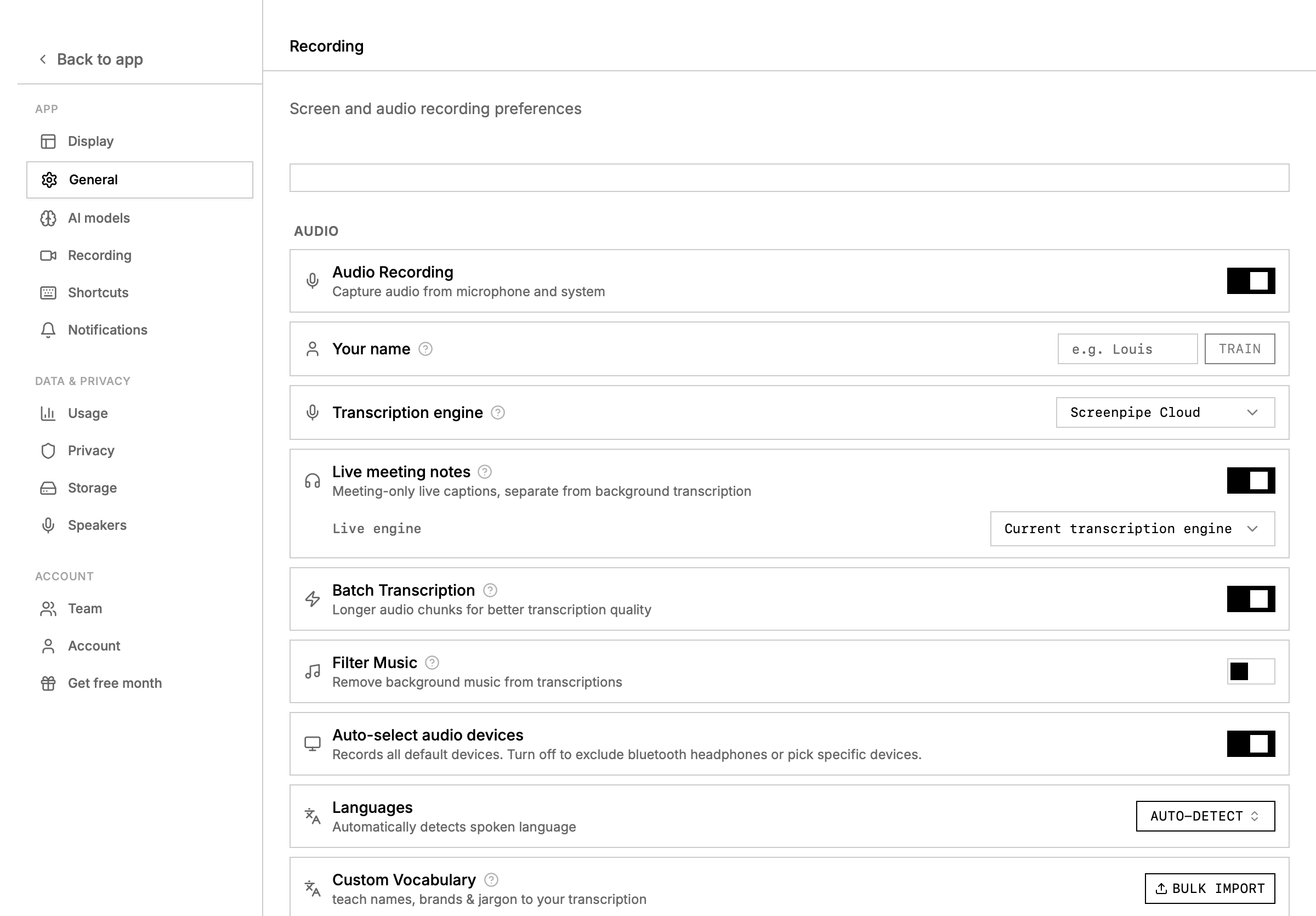
- Open Settings → Audio & meetings, enable audio recording, and choose the microphone and system audio sources you want.
- Connect Google Calendar in settings -> connections if you want attendee-aware speaker naming.
- Open the meeting app normally: Zoom, Google Meet, Microsoft Teams, Slack huddles, or another call surface.
- Let Screenpipe record and transcribe in the background.
- Open the meeting from the timeline or search with
content_type=audio.
Enable real-time transcription with Live meeting notes
- Open Settings → Audio & meetings and enable audio recording. The meeting controls are hidden when audio is disabled.
- Turn on Live meeting notes.
- Choose Current transcription engine, Screenpipe cloud live, or Direct Deepgram live. The current engine must not be disabled; cloud live requires sign-in, and a direct provider needs its own credentials.
- Start a short call and open the active meeting note. Speak a test sentence and check for new captions. Verify system audio too if you need the other participants.
Live transcript workflow
Use the meeting transcript sidebar to:- Rename a speaker once and propagate the label through the meeting
- Search for similar speakers before merging duplicates
- Copy the full transcript as plain text
- Open the related timeline moment when you need visual context
- Summarize the meeting with your default AI or a selected scheduled task
Summarize with a scheduled task
Meeting summaries can use any installed or store scheduled task. Use a scheduled task when you want a repeatable output format, CRM writeback, an Obsidian note, or a sales-call summary that always includes the same fields. Good summary task instructions include:Speaker cleanup
Meeting APIs
List and search meetings
q parameter searches across meeting title, attendees, and notes with case-insensitive substring matching.